
You’ve got a CxAlloy project where the owner has requested that the installation date for each equipment is recorded. You add an attribute for it, and contractors dutifully record the date as they complete checklists. Later, when you look at the installation dates you see that the date formats are not consistent: some are “Aug 19”, some “8/19/26”, and some “2026-08-19”. This creates headaches for working with the Excel exports and using the data for analysis. Wouldn’t it be nice if you could guarantee they were all in the same format?
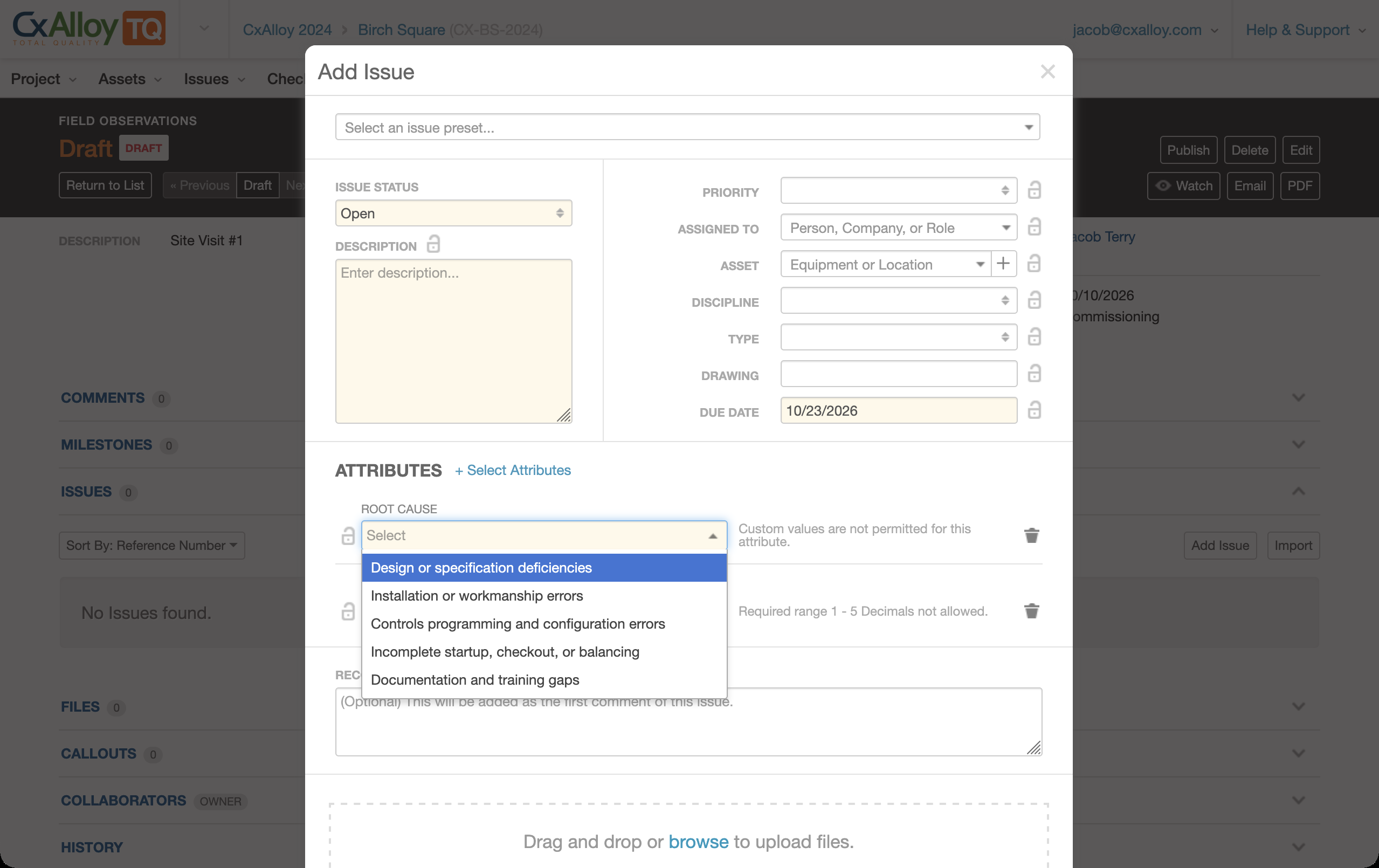
Or, you want every issue to include a Root Cause. You’ve created an internal process document that lays out the options team members should enter and you go through it at the kickoff meeting, but half the team forgets when they’re entering it in the field (or never read it in the first place). You now have 42 unique root causes instead of the five you wanted. Wouldn’t it be great if you could predefine the options and limit the choices to just those five?
We are happy to share that these capabilities, and more, are coming to CxAlloy. We call it “Attribute Validation”, as it builds off of our existing asset attributes and issue attributes.
Attribute Validation
The functionality provided by attribute validation is similar to what other platforms sometimes call custom fields: the ability to give each attribute a data type and define rules for what data is allowed.
The available validations are:
- Single Select
- Date
- Number
- URL
- Text with Units
You set an attribute’s validation in Project Settings under the Asset Attributes or Issue Attributes sections. Once an attribute’s validation is set it will be enforced everywhere that attribute is used (equipment, checklist and test lines, issues, etc.), across the web, iOS, and Android apps.
Three of these validations (Single Select, Date, and Number) have additional configuration options. Single Select is a dropdown of options you define, Date allows you to require the entered date to be before, after, or between specified dates, and Number lets you define minimum and maximum values, including per-unit minimums and maximums.
Allow and Flag
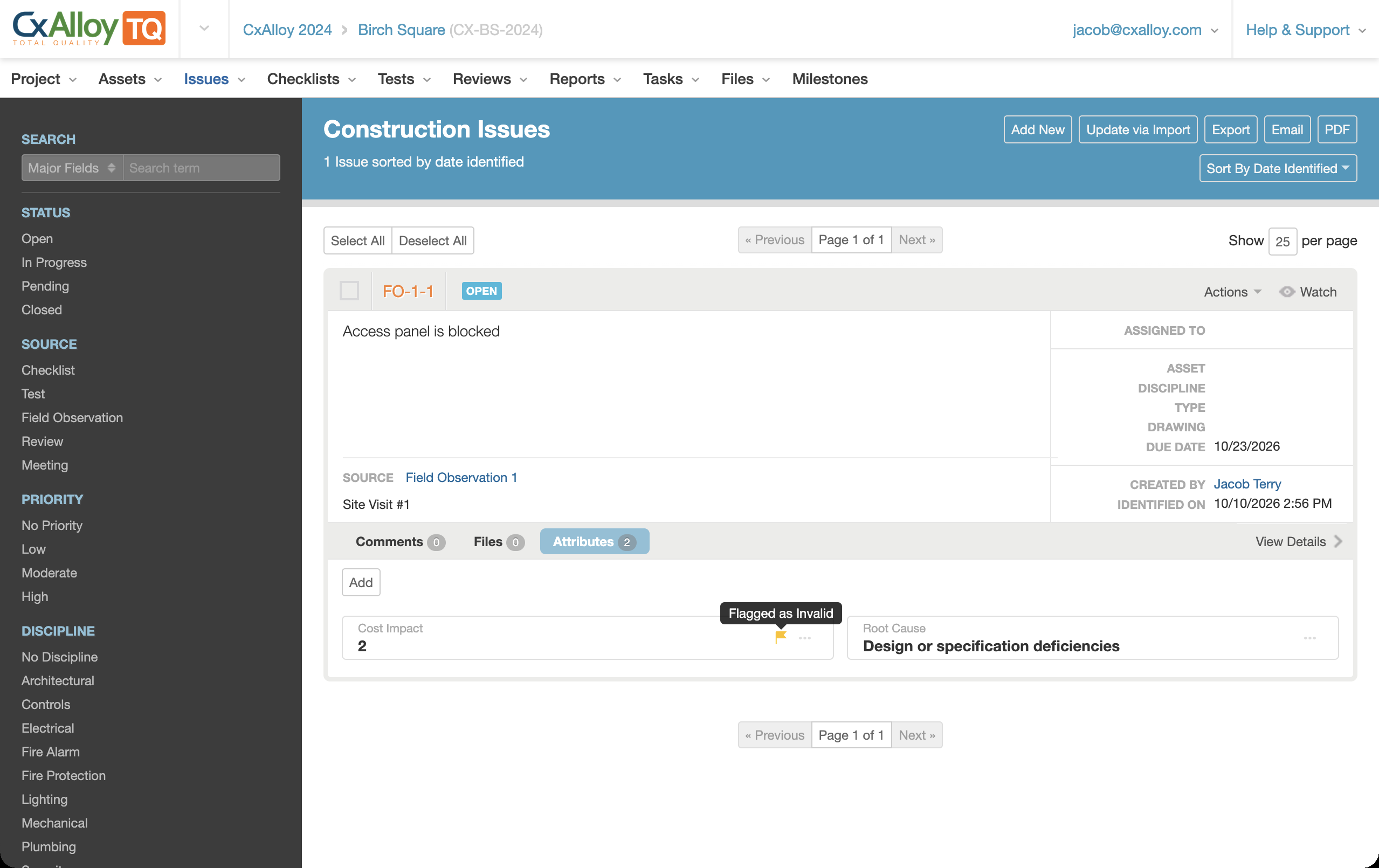
We’ve added an additional key capability: for validations with additional configuration options (Single Select, Date, and Number) you can choose to allow values outside of your constraints while flagging those values as invalid.
This allows you to define expected data while still allowing values outside of that expectation.
For example, you might define five options for a “Root Cause” attribute with the Single Select validation, but still want to allow users to write something outside of those five. “Allow and Flag” lets you do that; users can put in their own custom value. The value will be recorded and it will be flagged as invalid.
You can filter equipment and issues to those with invalid attribute values, and invalid values are shown with a small flag icon for easy identification.
Benefits
The capabilities of attribute validation have been requested for some time by our customers, and I’m happy we are able to deliver these. Attribute validation provides many benefits:
- Control what attribute values are allowed and the formatting of those values.
- Streamline data entry through customized input controls (such as date pickers) that make data entry more efficient.
- Get enhanced exports that format the output based on the field type.
- Understand your data faster with validation-aware sorting that creates logical groups.
- Find values that don’t meet expectations via the “Allow and Flag” validation mode.
Attribute Verification
CxAlloy has had a system for attribute verification since its first release in 2012, though you might not know it. Perhaps you have noticed and wondered about the “Confirmations Required to Verify Attributes” setting that each project has, the “Mark as Verified” option on an attribute, or why some attributes have a green checkmark.
Those are all part of CxAlloy’s attribute verification infrastructure. We found that CxAlloy’s verification approach was lacking and not well-understood by our users. So, we decided to take this opportunity to improve how verification works.
What is Attribute Verification?
The goal of verification has always been to give users confidence in the correctness of an attribute value by indicating when an attribute has had the same identical value recorded multiple times independently.
For example, if the same serial number was recorded in a checklist three months ago by the contractor and again in a test last week by the commissioning provider, you can have a high degree of confidence it is accurate. Verification makes that easy to see.
What Has Changed
The primary change we have made is that attribute verification is now an opt-in capability on an attribute-by-attribute basis instead of a project-wide setting.
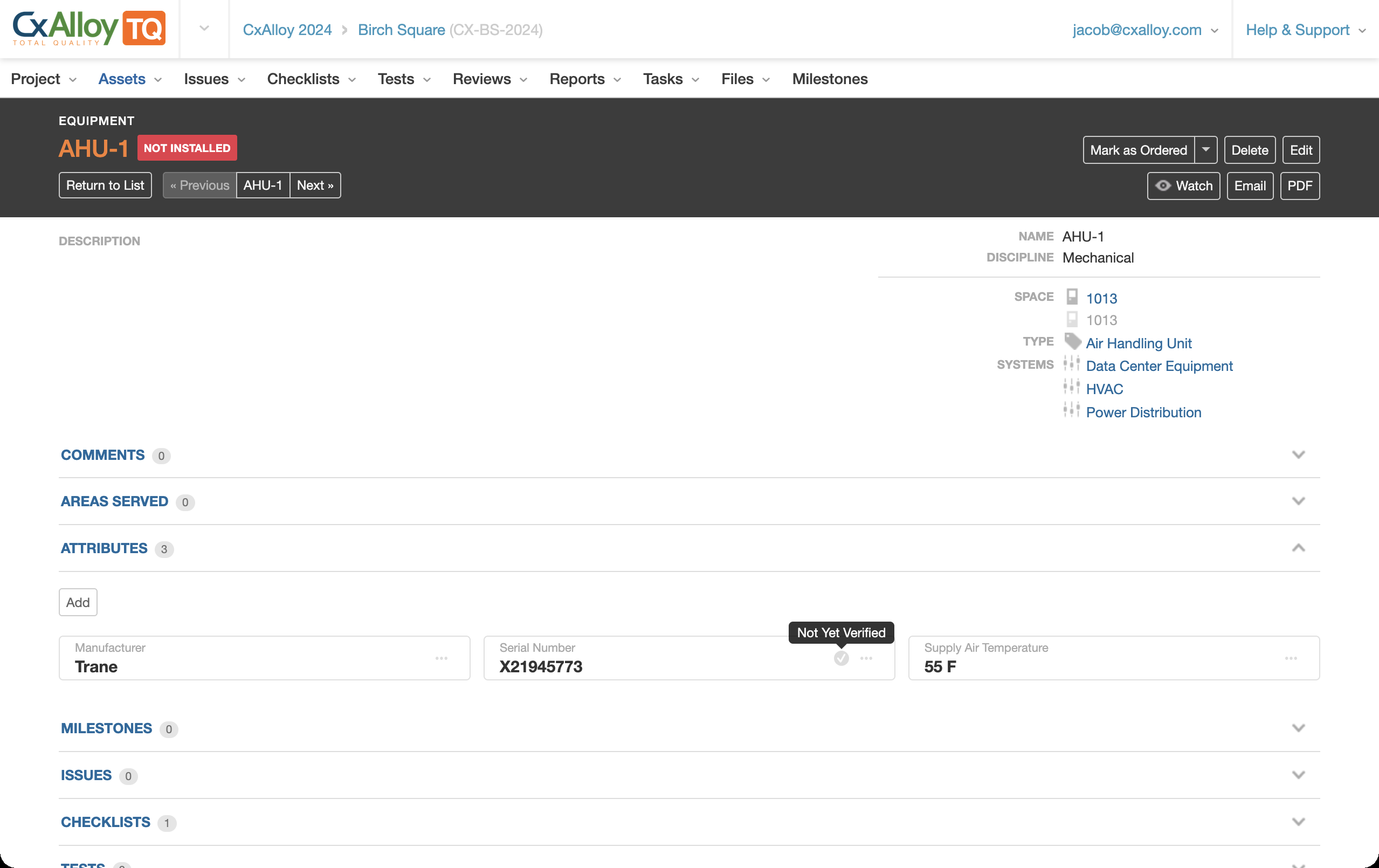
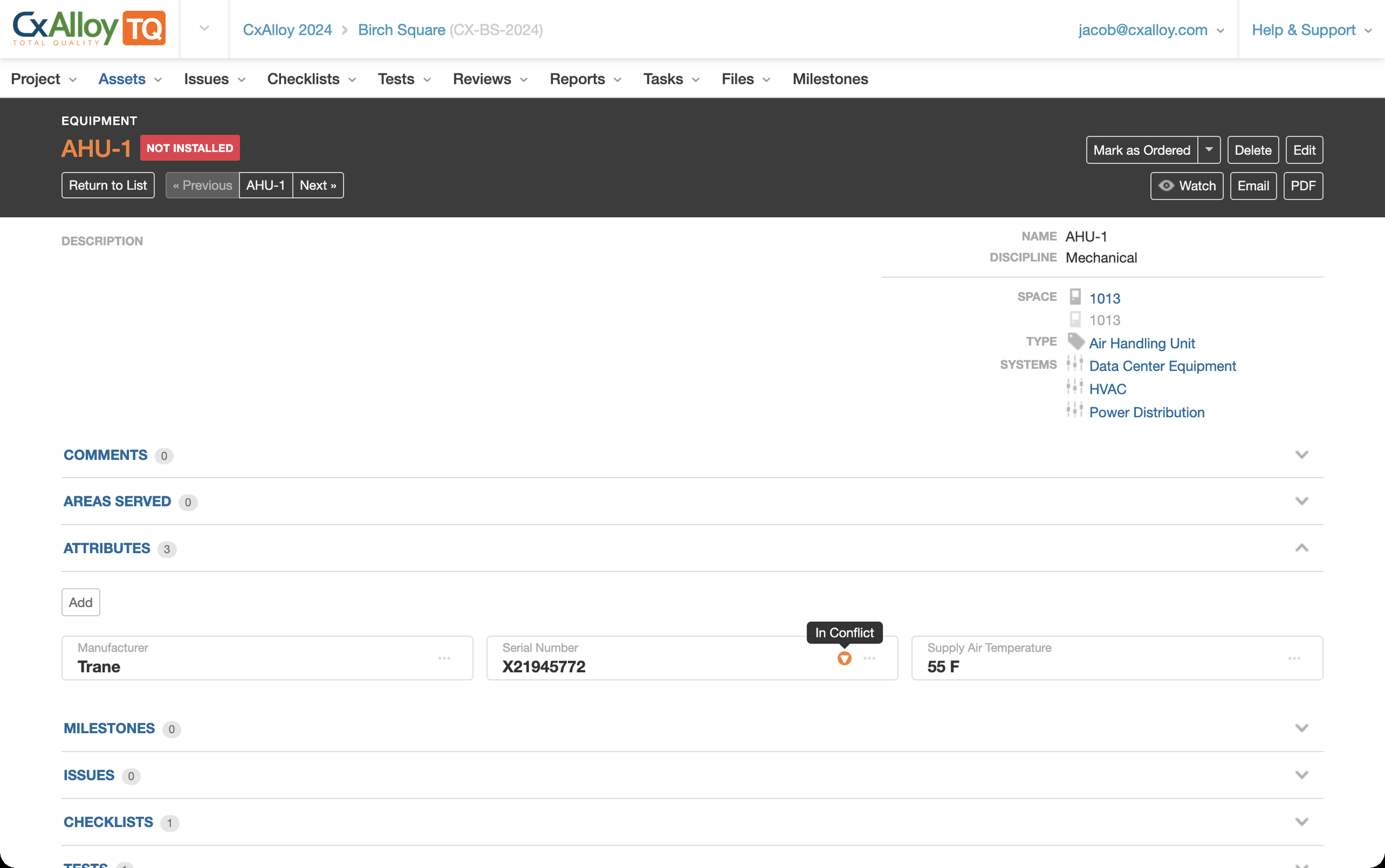
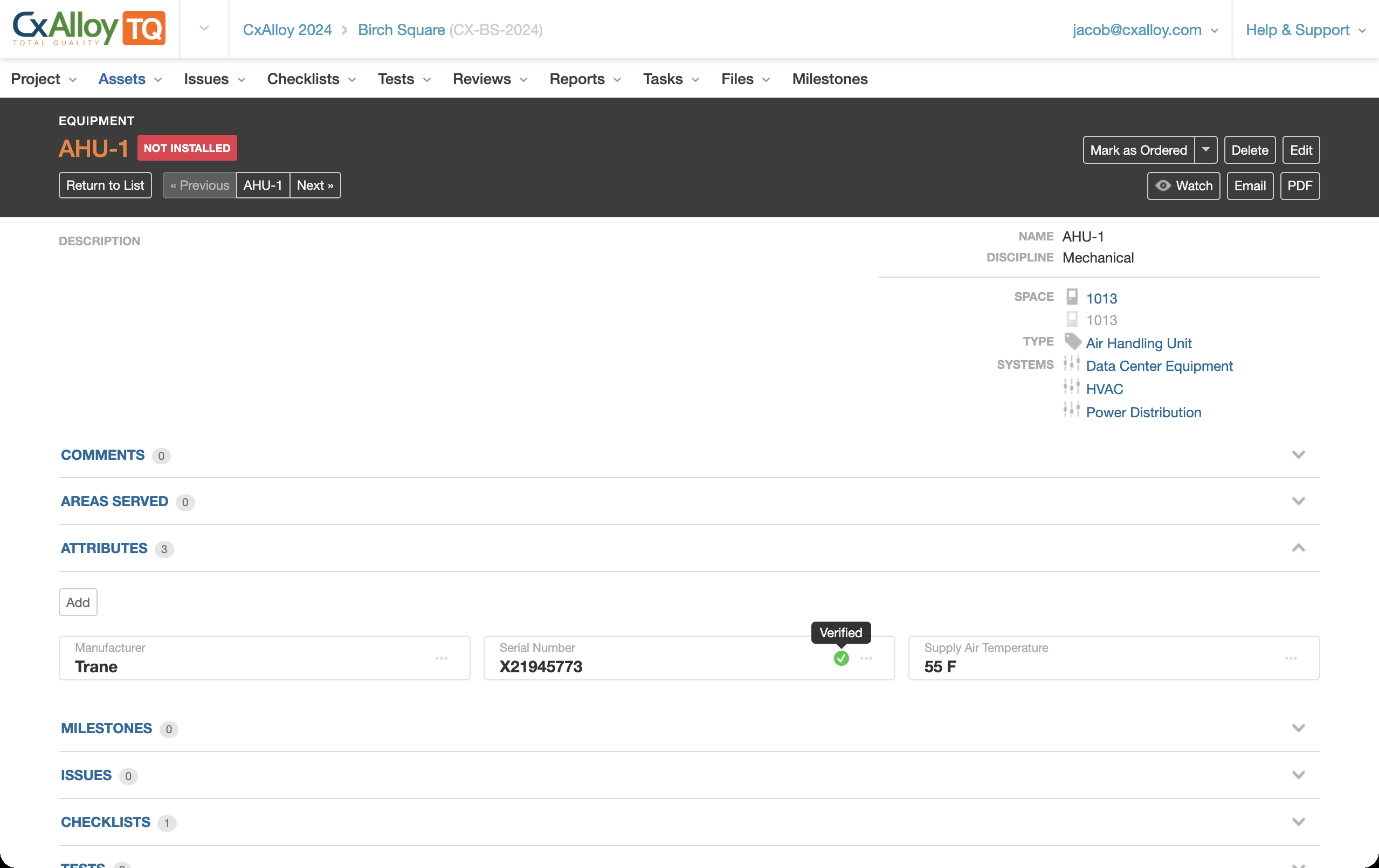
You indicate which attributes are important enough to need verification, and CxAlloy will show a verification status for those attributes. Each attribute that has verification enabled will show one of three statuses:
- Not Verified
- In Conflict
- Verified
An attribute’s verification status is shown via a small icon next to the value in the Attributes subsection.
How it Works
Verification is only available for asset attributes. It uses the attribute lines of checklists and tests as its data sources and compares an attribute’s current value to the values recorded for the same attribute across multiple checklists and/or tests to determine that attribute’s verification status.
When you enable verification, you specify the number of matching values that are required to achieve “Verified” status.
UI Refresh
As part of this effort we have redesigned attribute handling across the application. Redesigned areas include the settings areas for Asset Attributes and Issue Attributes, the “Attributes” subsections of asset and issue detail pages, and the data entry of attribute lines in checklists and tests.
We have also updated exports to automatically format attribute data based on its validation type, added new filters to the equipment and issue lists, added new options when batch editing attributes, and updated PDFs to include the new icons for invalid values and verification status.
Noteworthy UI Changes
Usage
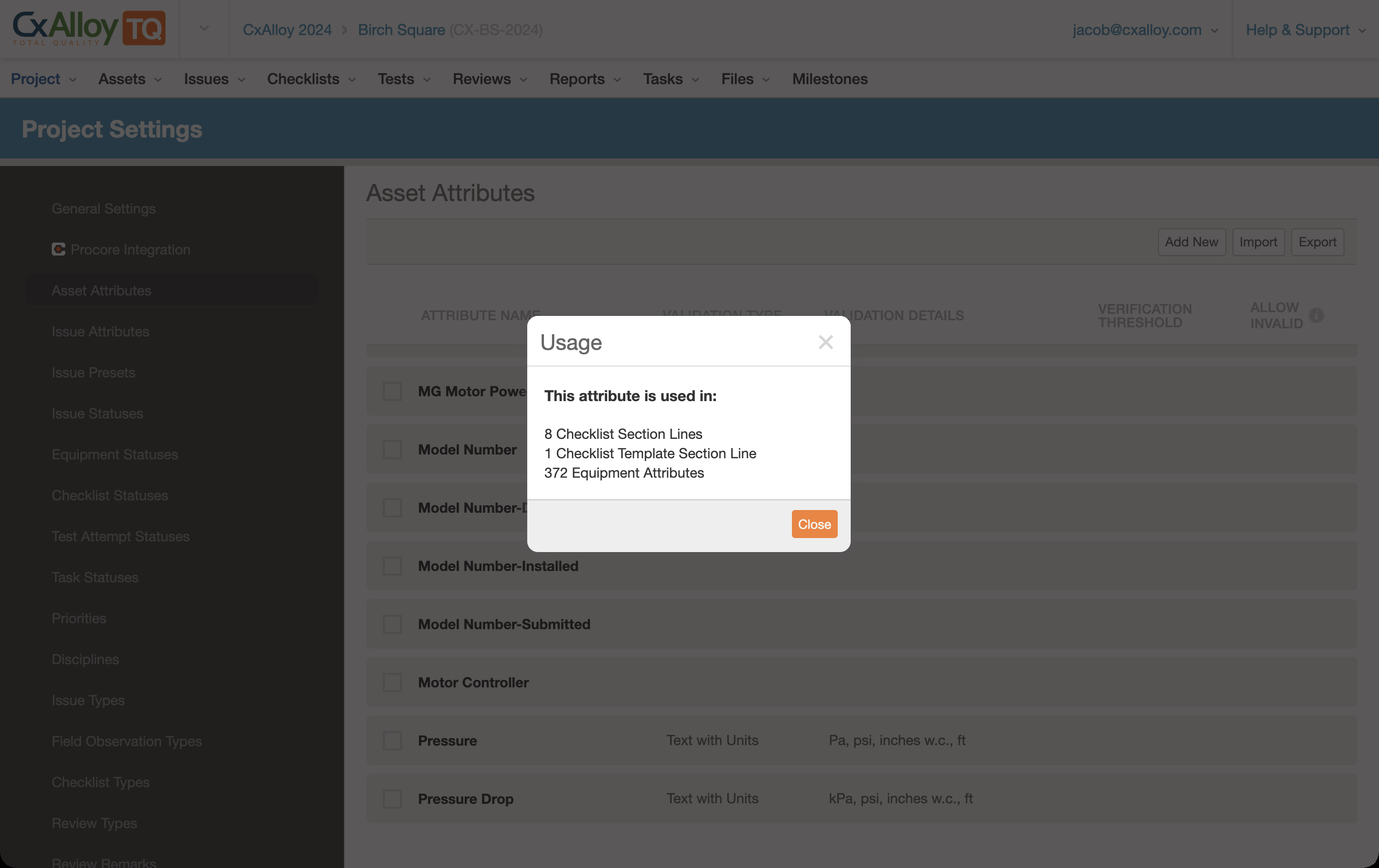
A “Usage” option is now available for each attribute to get an overview of where the attribute is used. For asset attributes it will summarize how many assets, templates, and checklists or tests use that attribute. For issue attributes it will summarize how many issues use the attribute.
Issue Attributes in Issues List
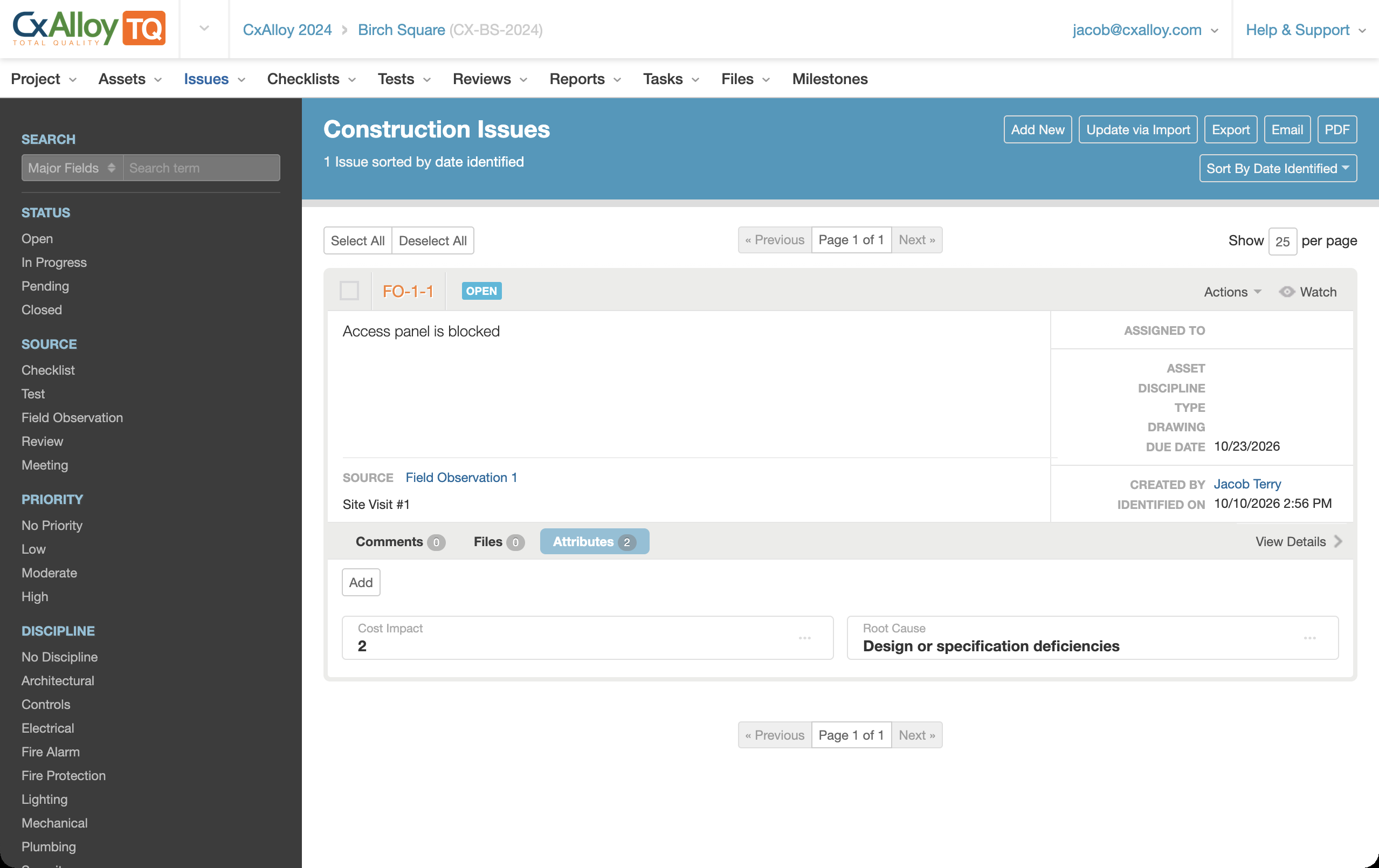
Issue attributes can now be managed from the issue list. Previously you could view, but not edit, attributes from the issue list; you would have to navigate to the issue detail to make changes. You can now add, edit, and remove issue attributes from the list.
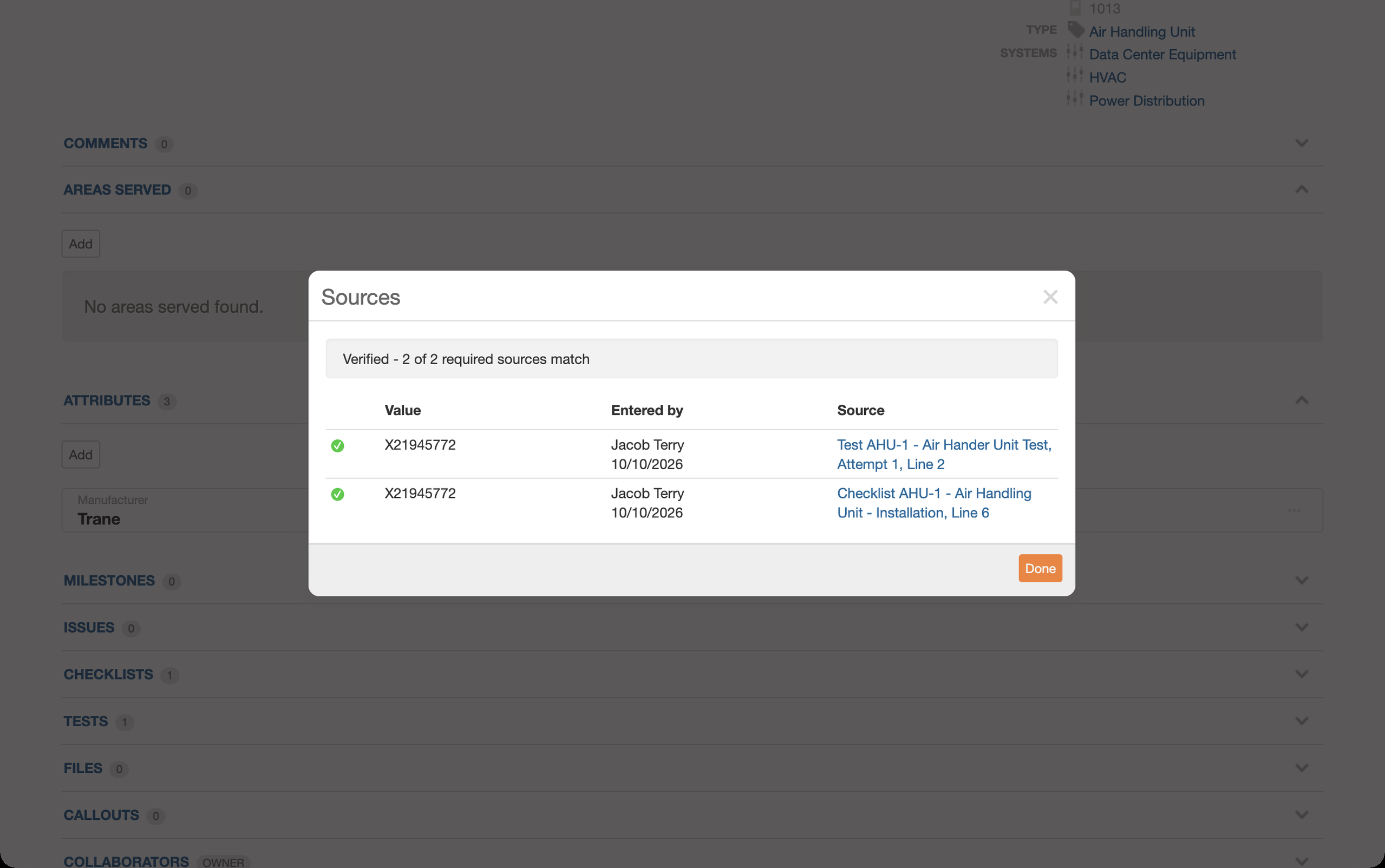
Improved “Sources” View
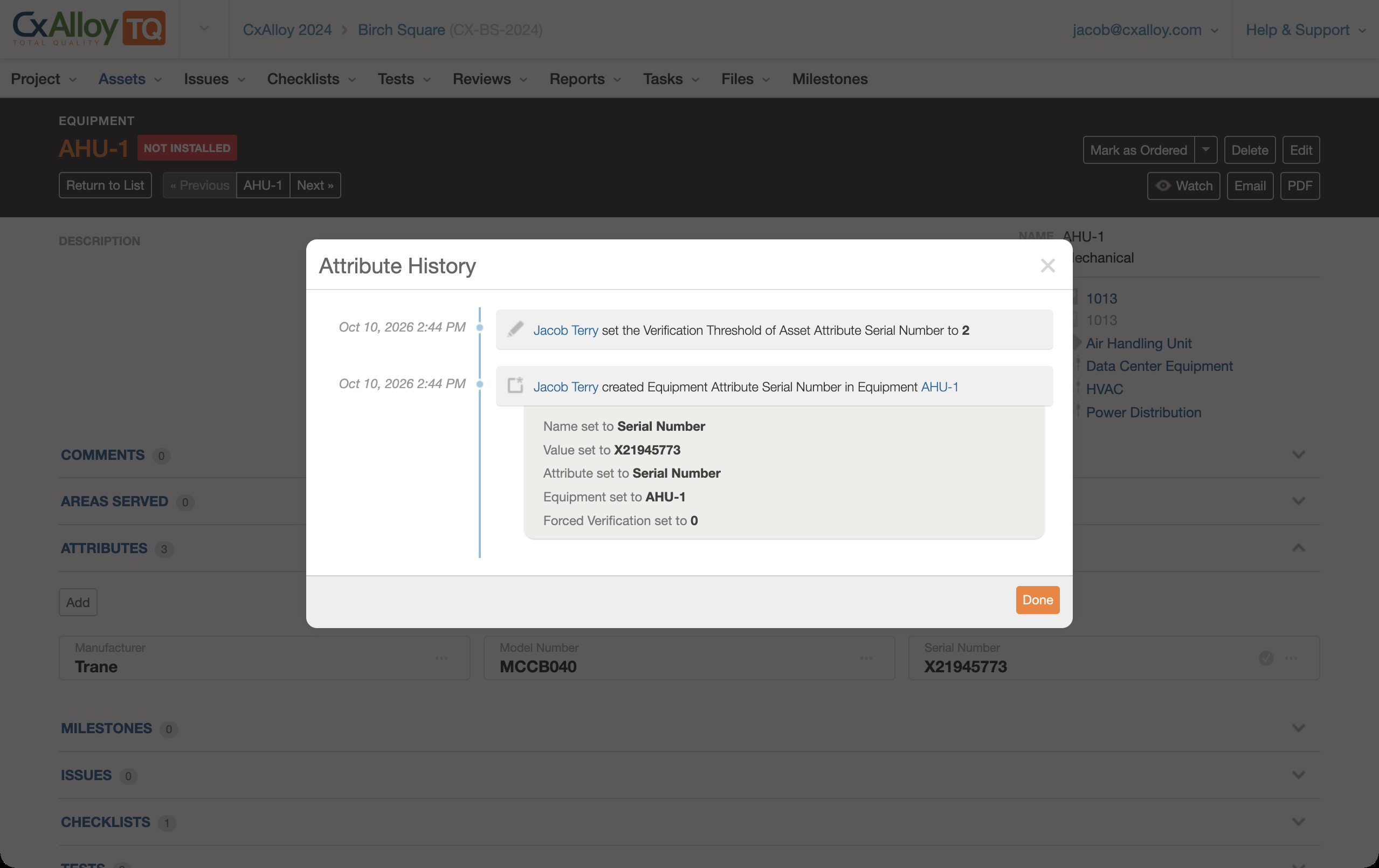
The “Sources” view now shows additional information, including who recorded each value, the date and time it was entered, and its verification status (if verification is enabled for it).
We have also brought Sources to the iOS and Android apps for the first time.
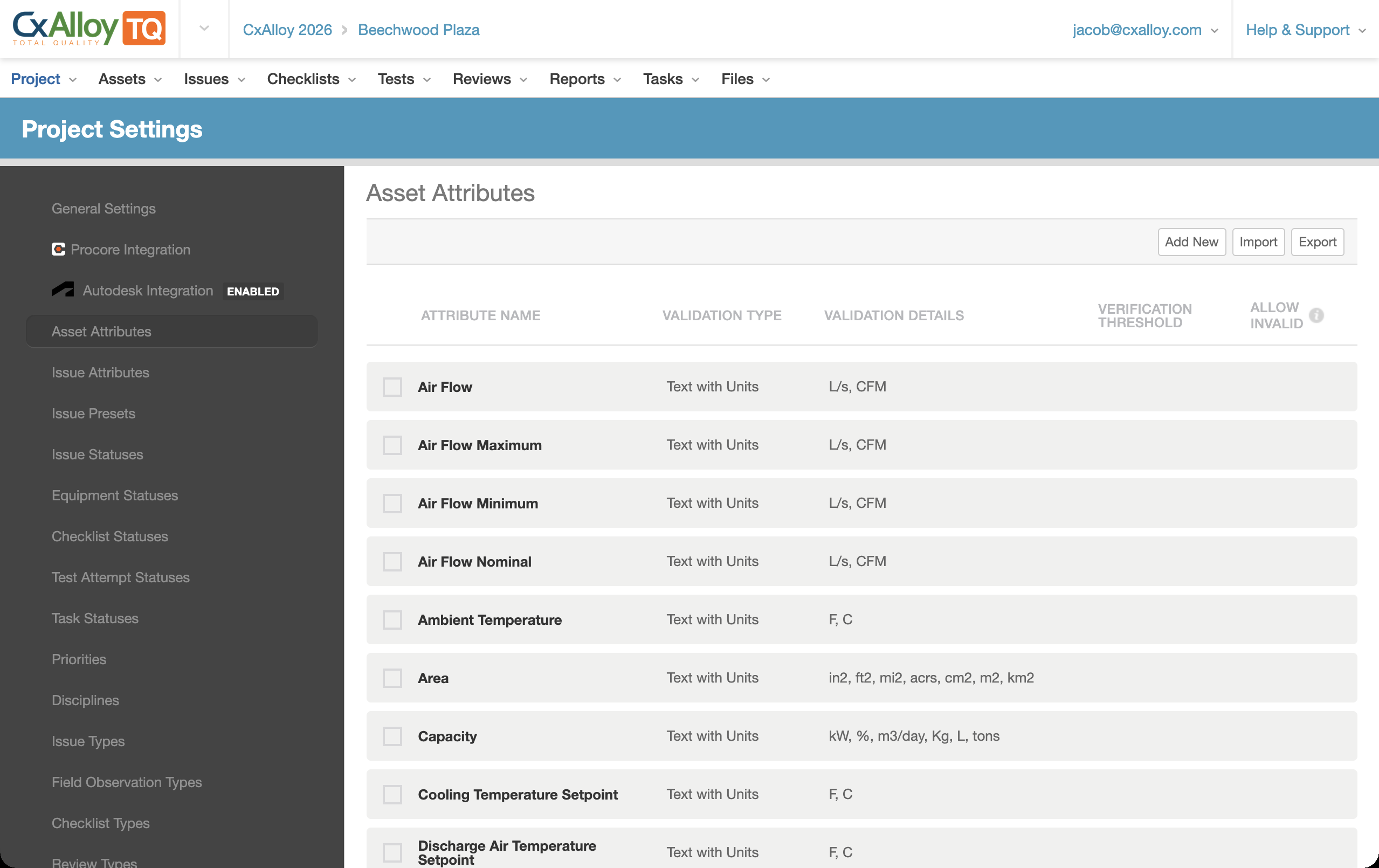
Transition
When attribute validation rolls out later this month you will see that all your existing attributes either have no validation or the “Text with Units” validation. Any attribute you have today that has units will be set to “Text with Units”; all other attributes will have no validation. Recording values for these attributes will work just as it does today.
What will change is that you will now have the ability to apply a validation to any of your attributes. We have designed it so that you can update existing attributes with a validation without worrying about losing data. The default option, “Keep and Flag Invalid Values”, will maintain all of your data and just flag those values that don’t meet the new validation criteria.
Alternatively, you can choose to delete any attribute values that don’t meet the new validation criteria.
iOS and Android Apps
New versions of the iOS and Android apps are available that fully support attribute validation and verification. We know that customers don’t always update their apps right away, though. To ensure that no data is lost due to validation rules, syncing from older versions of the app will work just as before. If a value from an older version of the app is synced up that does not meet the attribute’s validation, we will still accept it while flagging it as invalid.
API
To ensure that we don’t break API scripts, the API will not reject values that are invalid. It will accept them and flag them as invalid.
Conclusion
We have worked hard to build out these new capabilities. We hope you find them useful and look forward to your feedback on how we can continue to enhance and improve from here.